If you purchased an organisation group plan there are a couple of methods to add colleagues to your account.

Invite users

Go to your Dashboard from the main menu at the top right and select the Subscriptions tab. Click the Sub Accounts link.
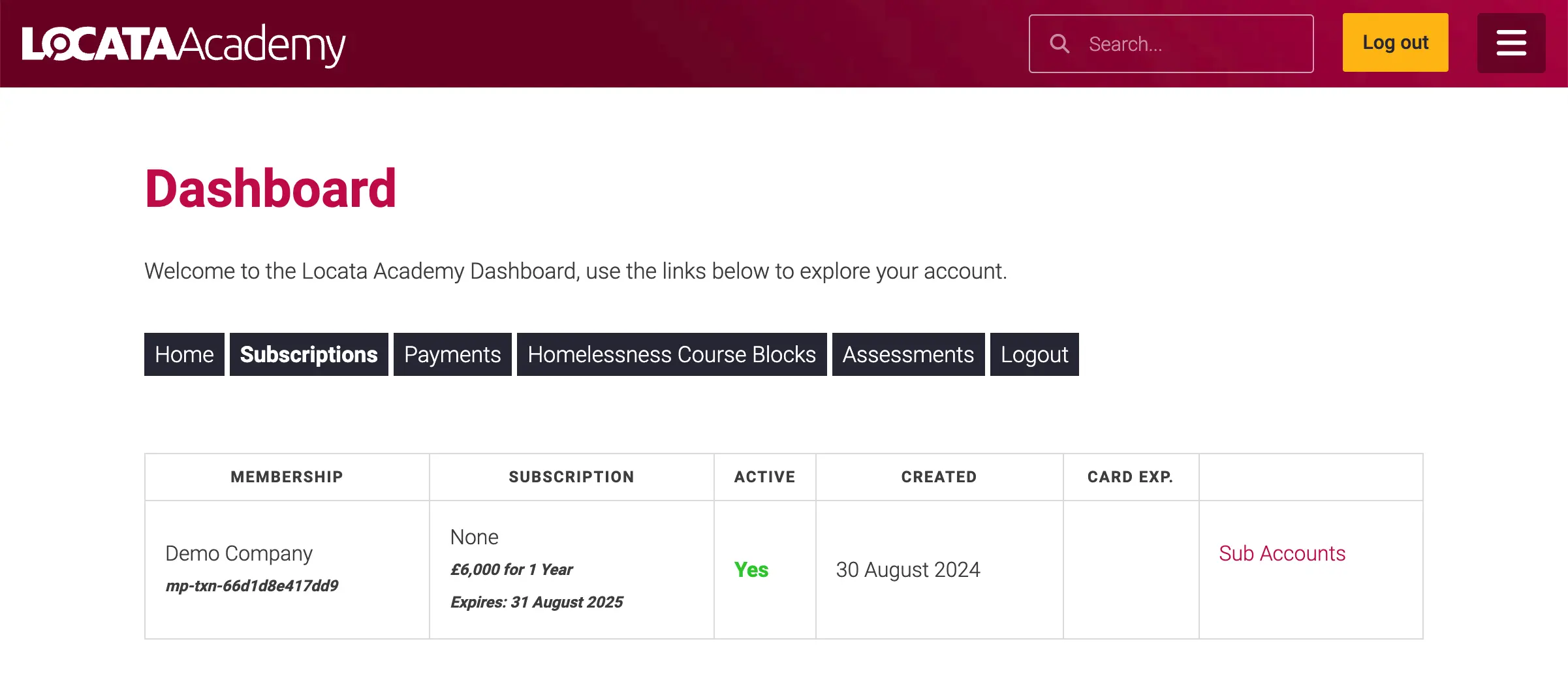
Screenshot of subscription page with sub-account link

Click the Add Sub Account button, complete the email and name fields with their details and click Submit. Make sure to select the checkbox to send them a welcome email.
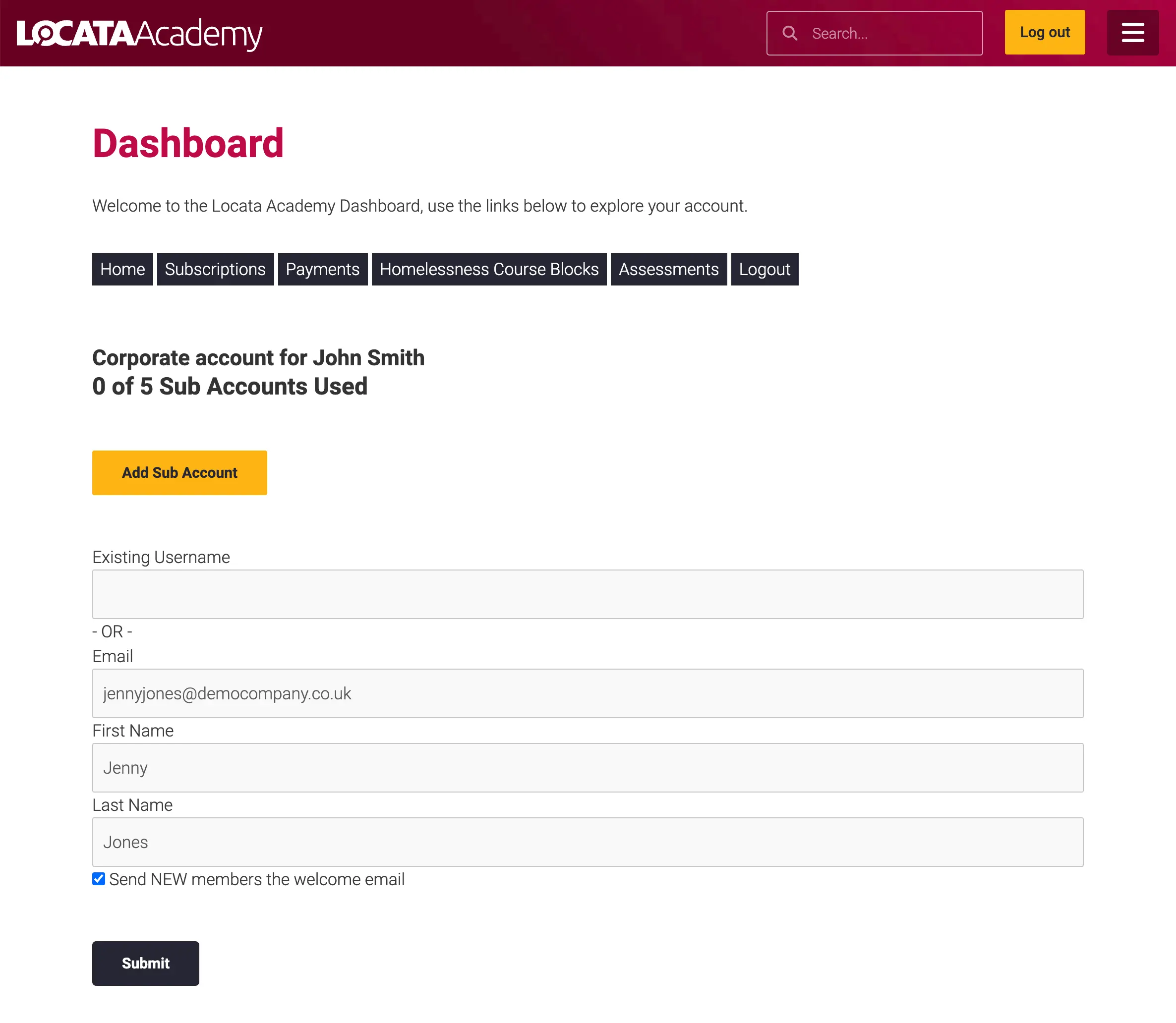
Screenshot of inviting a sub-account

Your colleague will receive an email like below where they are prompted to setup a password for their account and login.
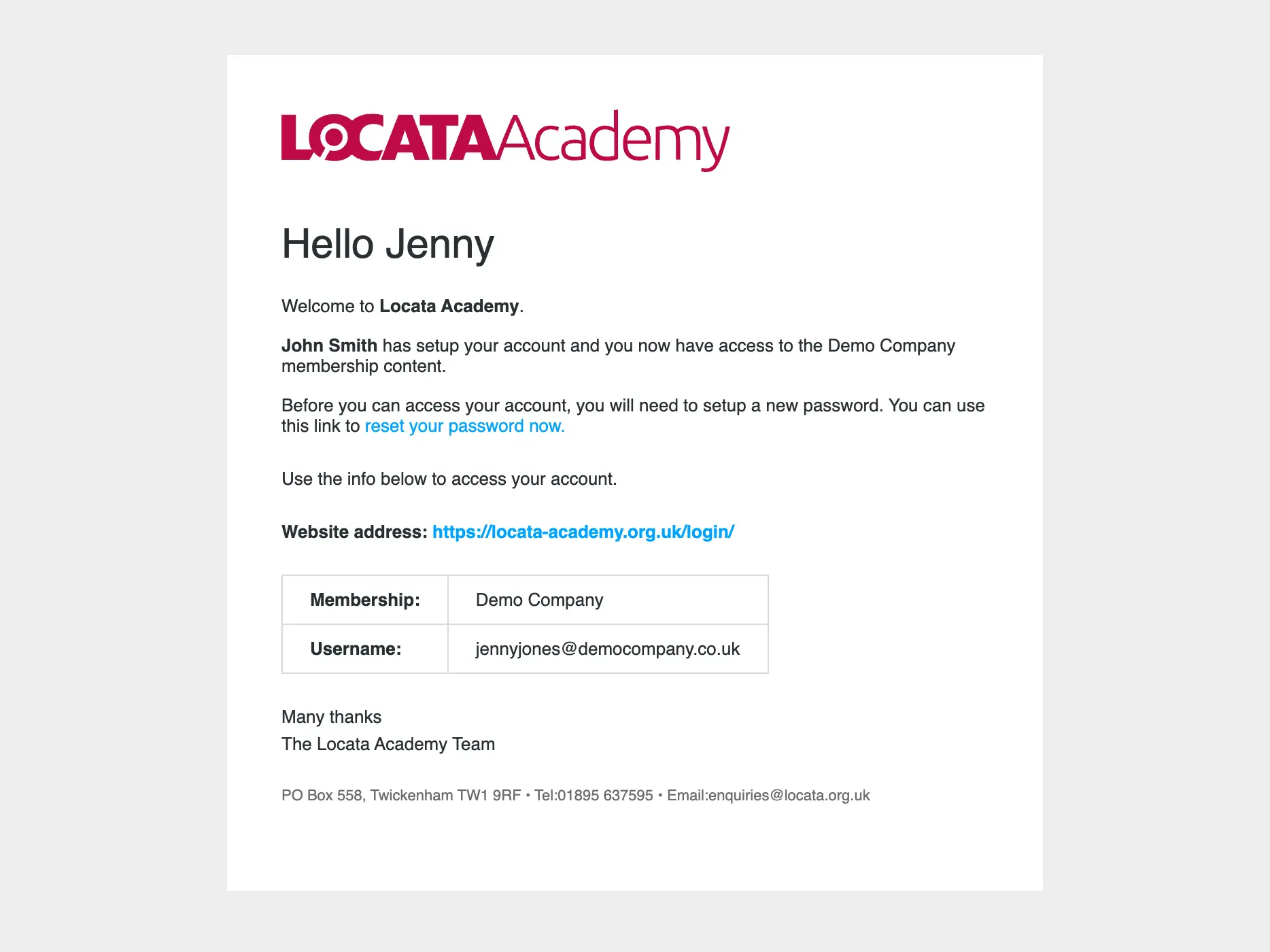
Screenshot of a sub-account invitation email

You will now see them in your list of sub-accounts. The number of sub-accounts used from your allocation will be updated too.
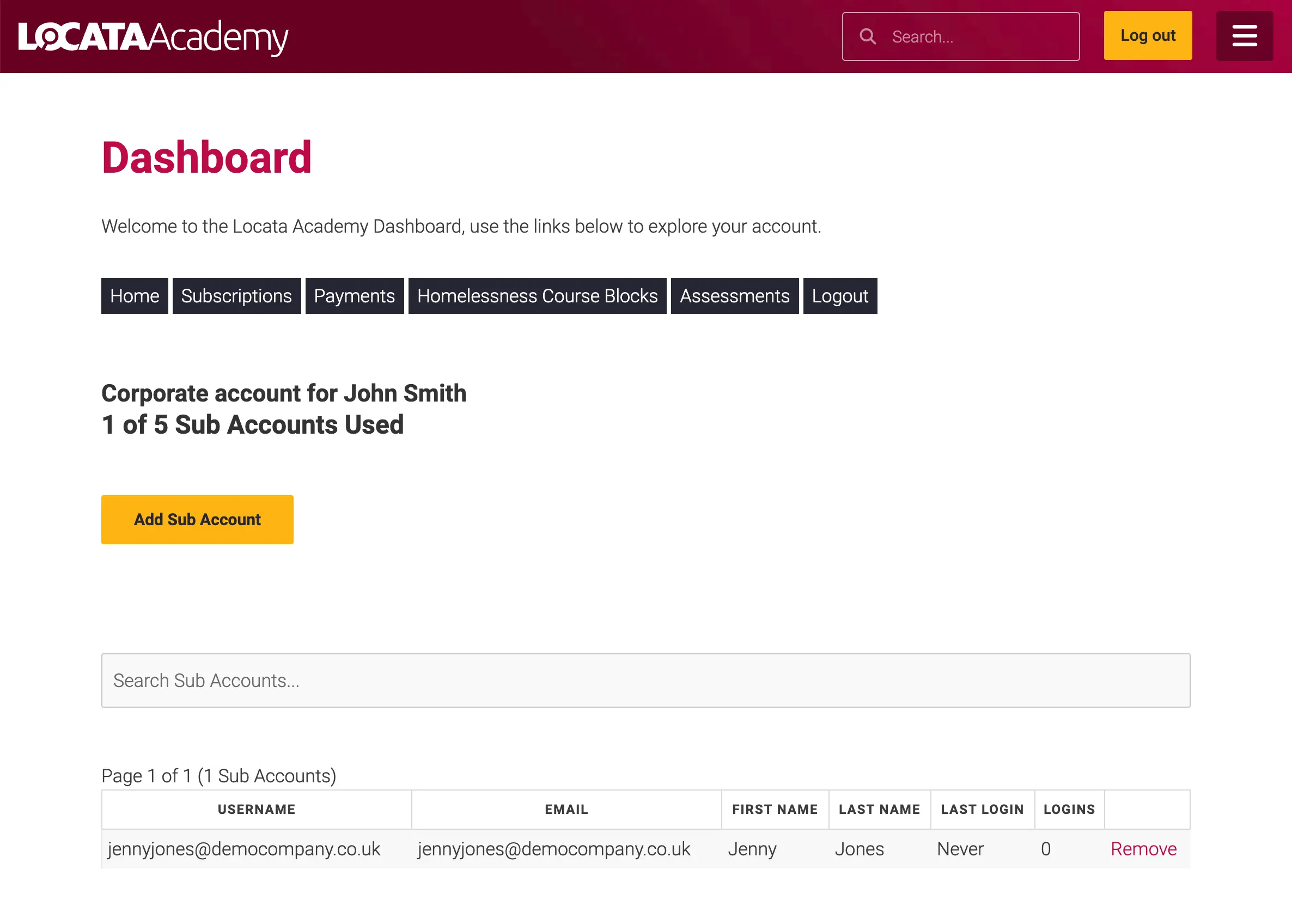
Screenshot showing sub-accounts

Signup URL

The second option is to use the signup URL. Beneath the invite option is a URL, click the clipboard icon to the right to copy and then paste it in an email to your colleague. When they open the link it will take them to a registration page to enter their details. Once they have registered they will appear in your list of sub-accounts and your allocation will be updated.
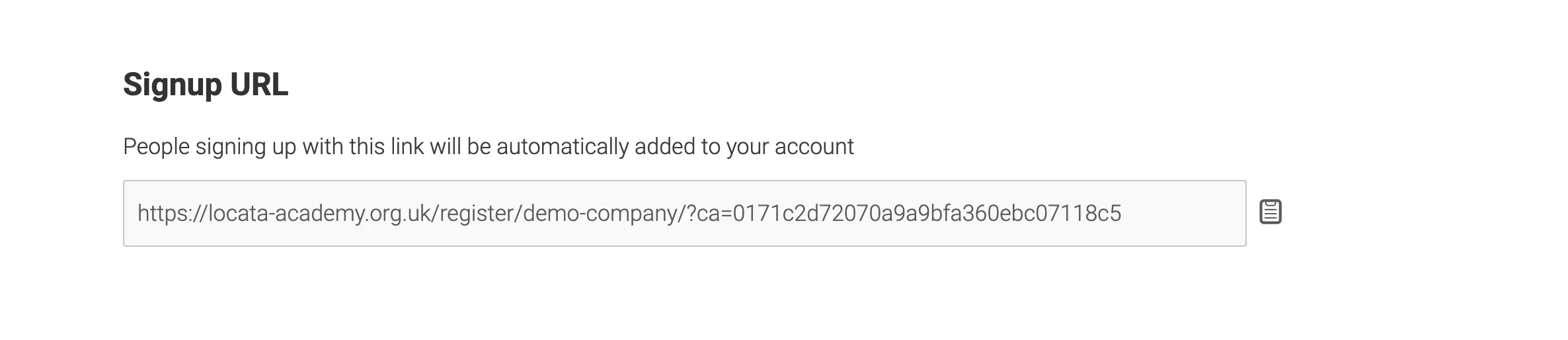
Screenshot of signup URL

166 views

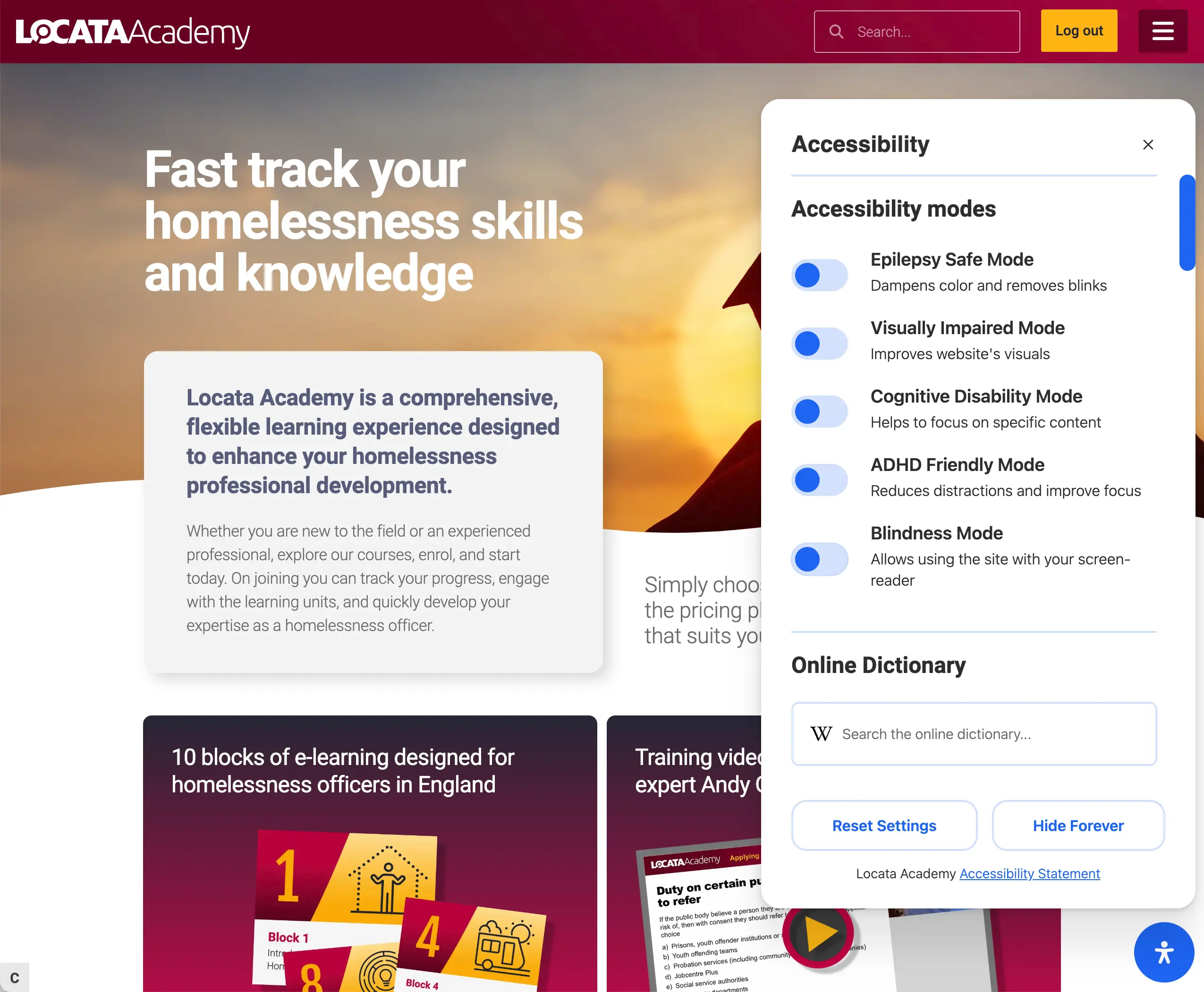
The Locata Academy Homelessness course has a dedicated tool to help users with accessibility. Clicking the blue button with a person icon in the bottom right corner launches the toolbox. The toolbox initially displays 5 preset modes for common disabilities. These are activated by clicking on the toggle switch next to them. Scrolling down the toolbox reveals a dictionary search and numerous options to fine tune the appearance of the site to your specific needs.

Screenshot of accessibility toolbox

49 views

Hello , how can we help?

If you can’t find the answer to your query in the help pages send us a message using the form below.

58 views

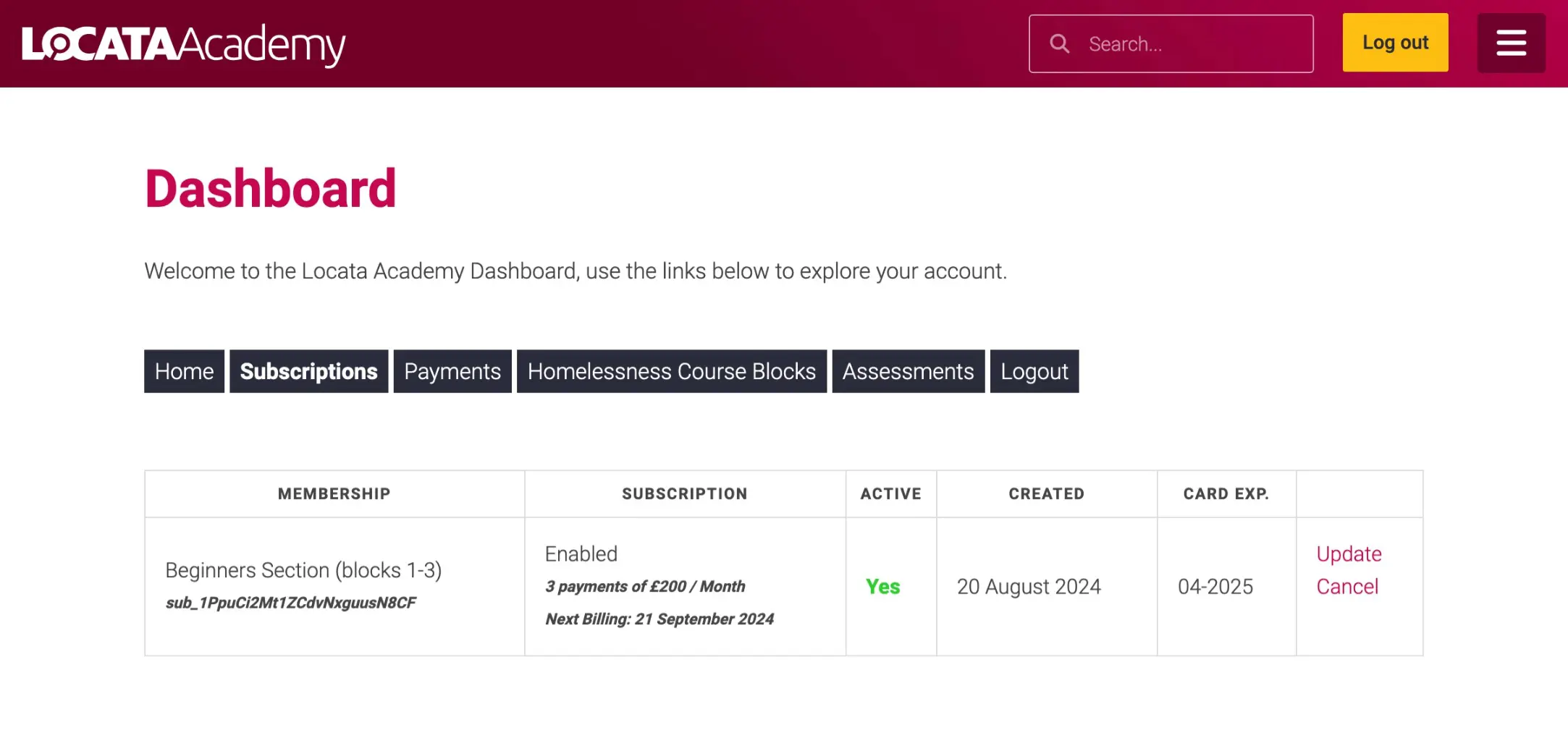
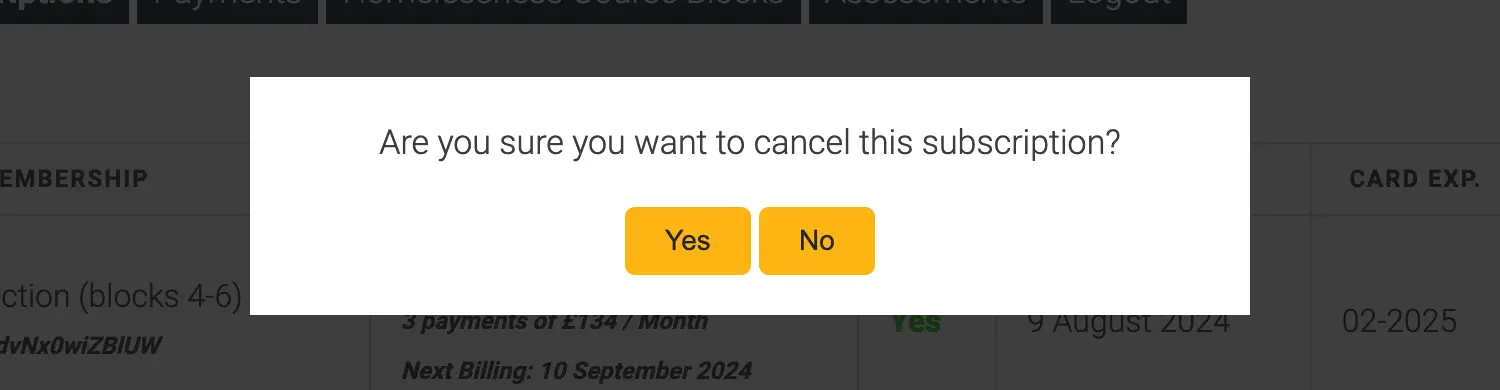
To cancel your subscription go to the dashboard from the top right menu. Select the Subscriptions tab and if you have an active subscription you’ll see a link to cancel it. Upon clicking the link a popup will ask if you are sure. Clicking yes will cancel any further payments. Your subscription will remain active until your next payment or when it expires, whichever is sooner.

Screenshot of subscription page

Screenshot of subscription cancel confirmation

24 views

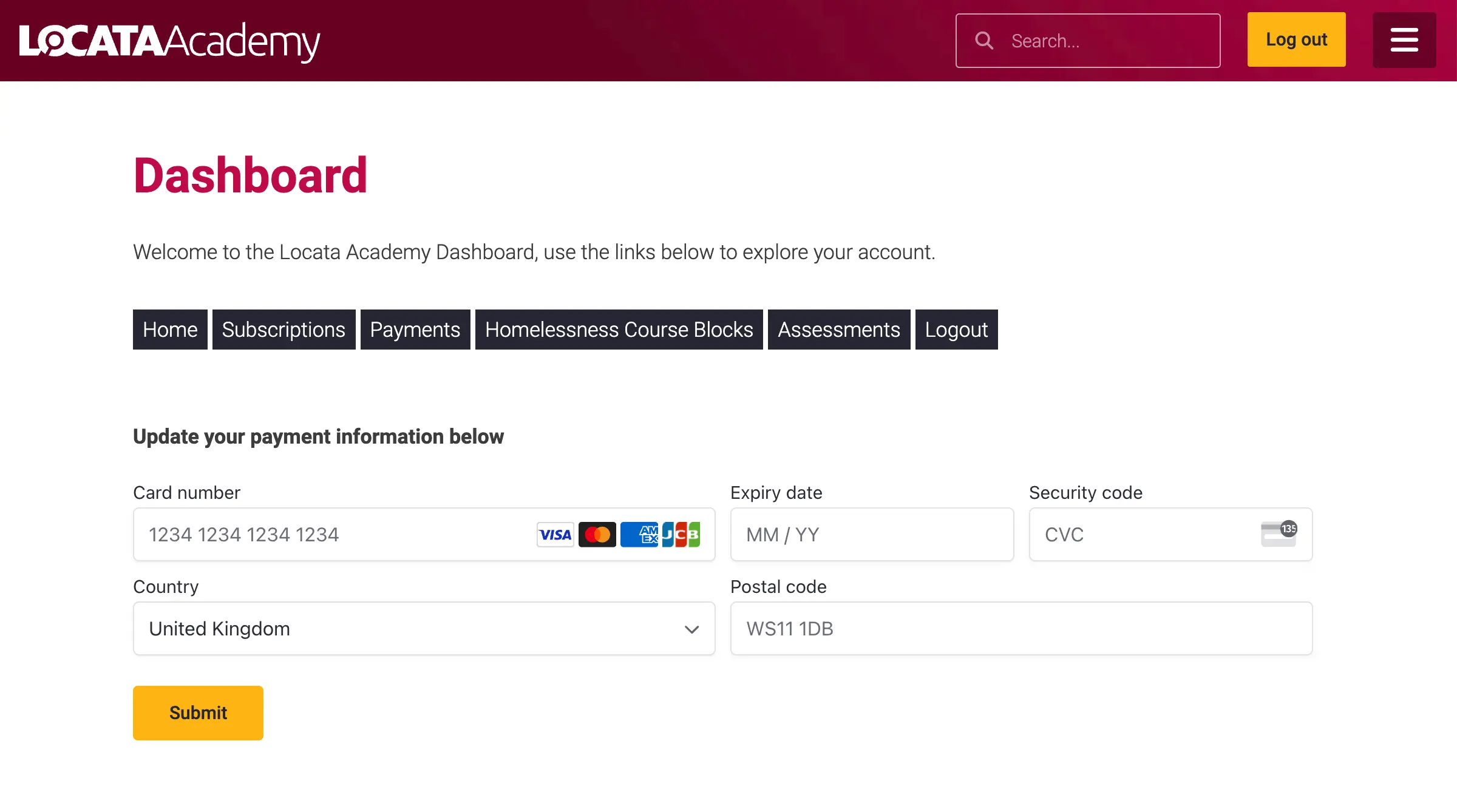
To update your payment details go to the dashboard from the top right menu. Select the Subscriptions tab and then click the Update link. Enter your new card details and click the Submit button.

Screenshot of payment details update page

19 views

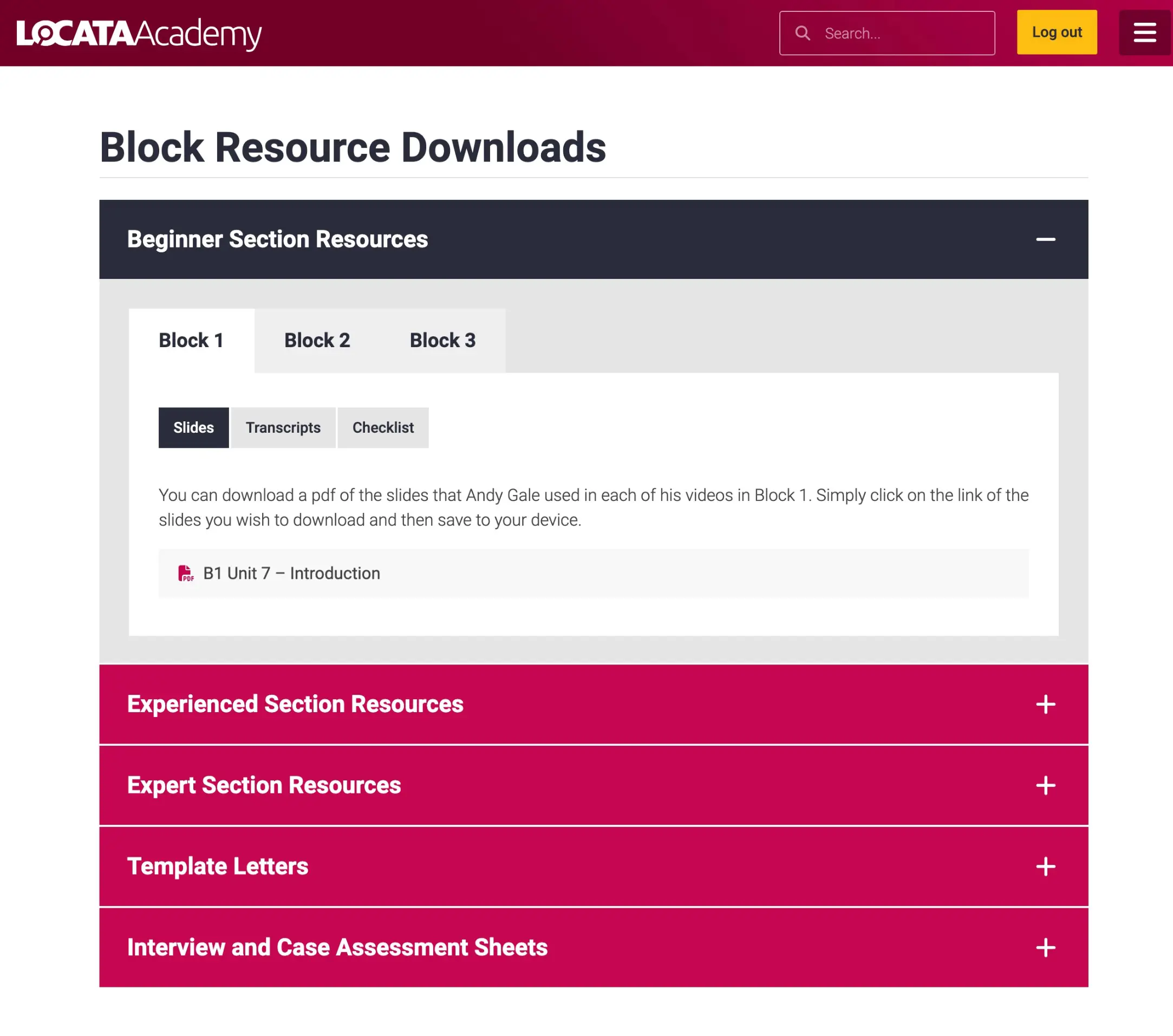
The Resource Downloads page contains slides used within the videos for each block along with transcripts and checklists. You can find links to this page from the block, the course blocks page and the main menu at the top right. You will need to have purchased a plan/membership for the relevant blocks to view their resource materials.

In addition to the block resources there are template letters and Interview and Case Assessment sheets. These are free for everyone to view and download.

Screenshot of the Resource Downloads page

38 views

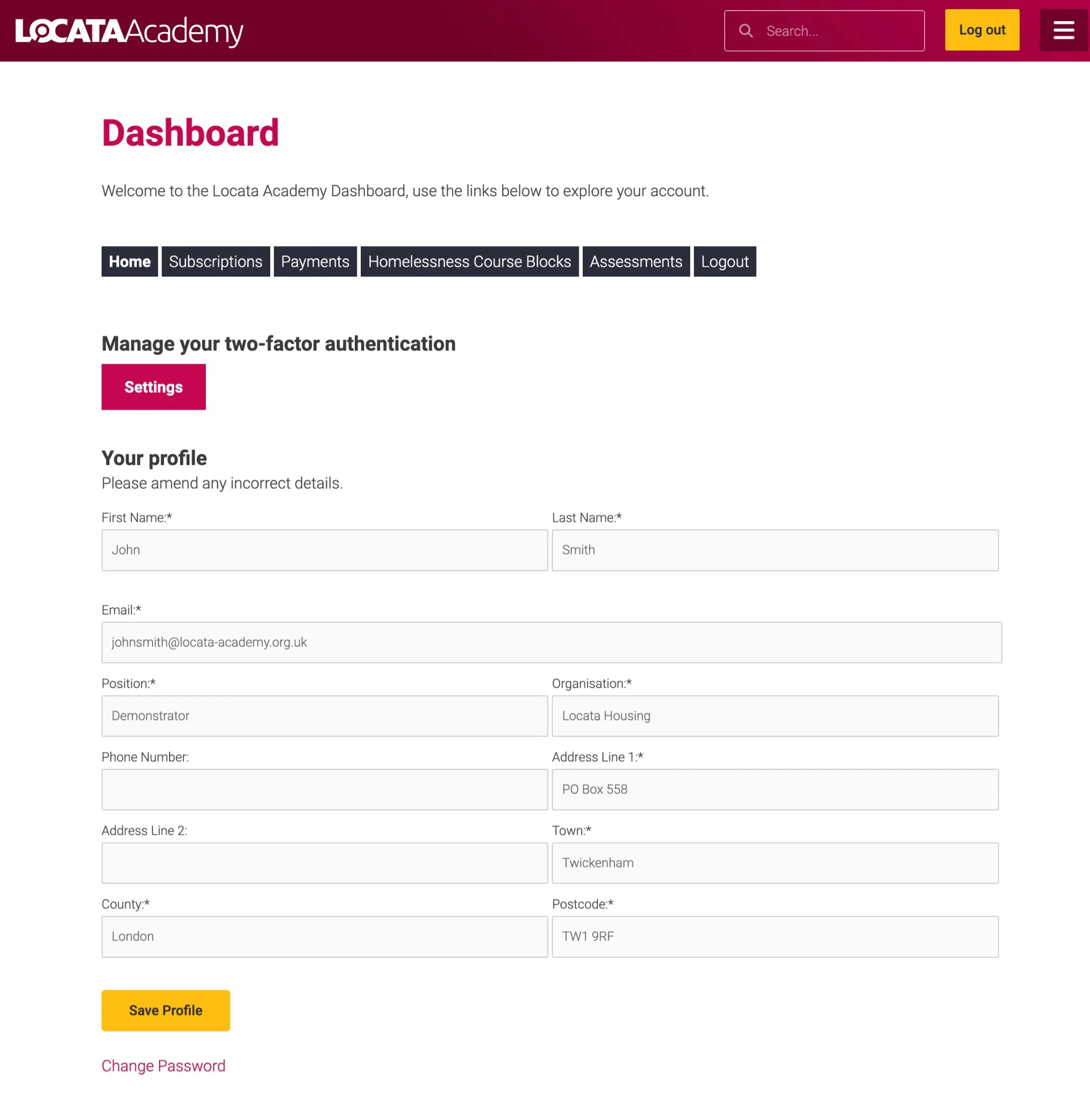
To reset your password you can do this by going to the dashboard from the top right menu. At the bottom of the Home tab is a link to change your password. Click this, enter your new password and press the Update Password button.

Screenshot of where to change the profile

Forgotten your password
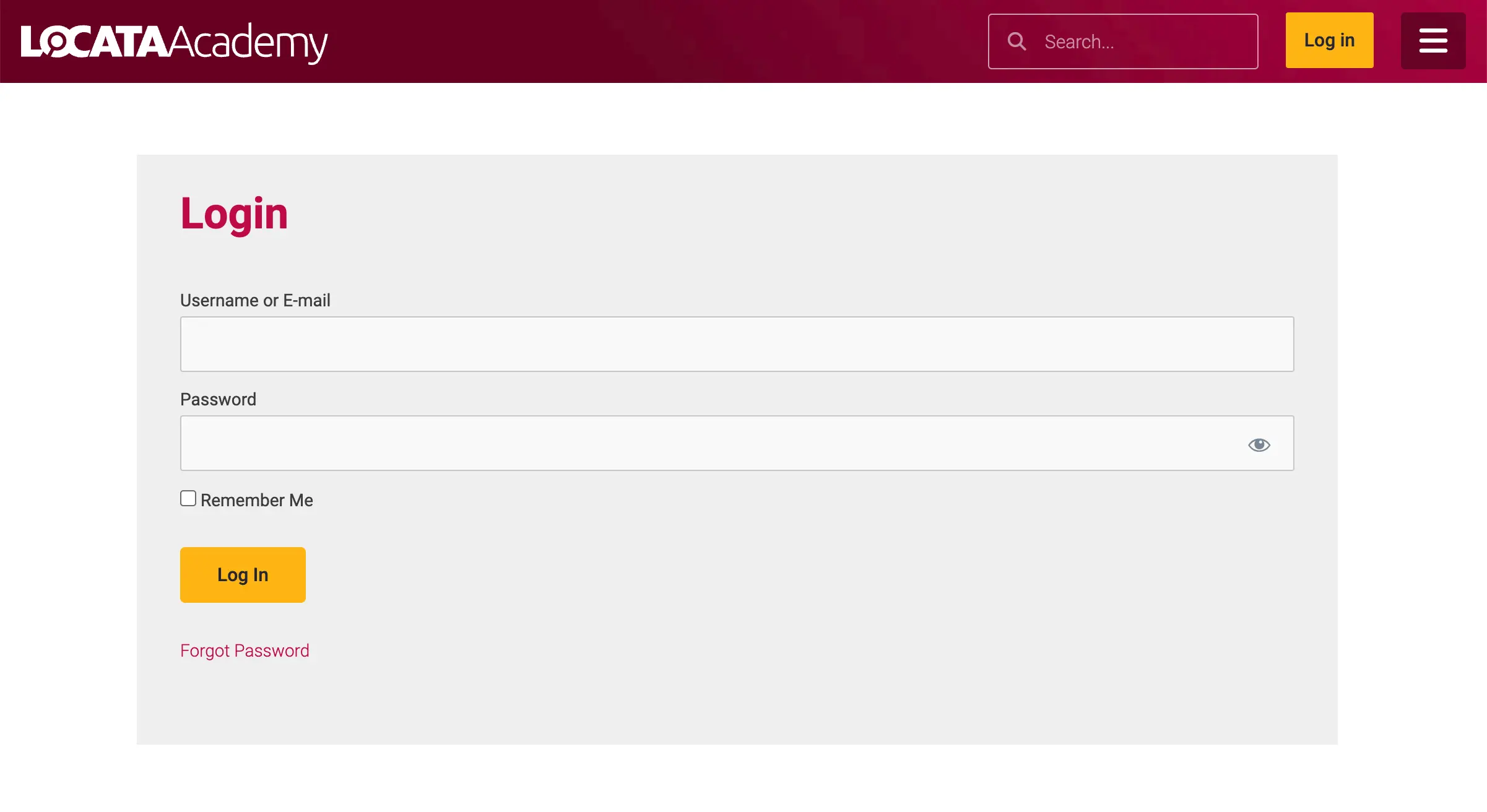
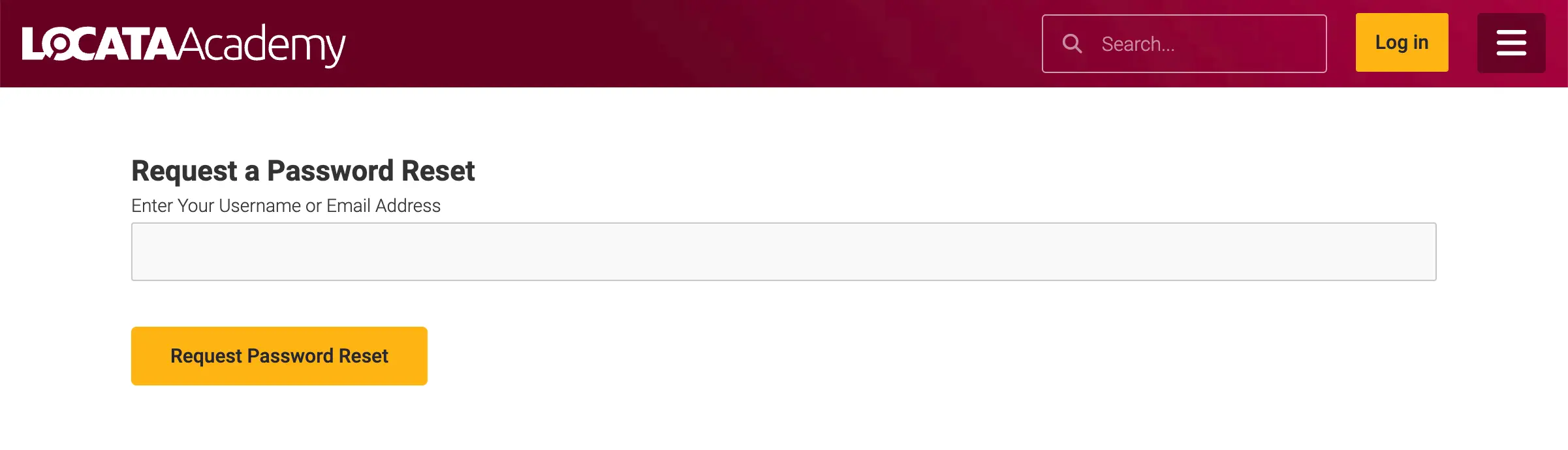
Go to the login page by clicking the login button in the site header bar then select the forgot password link. This takes you to a page where you’ll be asked to enter and submit your email address. If there is an account related to the address an email will be sent with a link to change the password. This will take you to a page on the site where you can enter your new password and press update. If you don’t receive and email within 5 minutes please check your junk folder.

Screenshot of login page

Screenshot of where to enter email for password reset

66 views

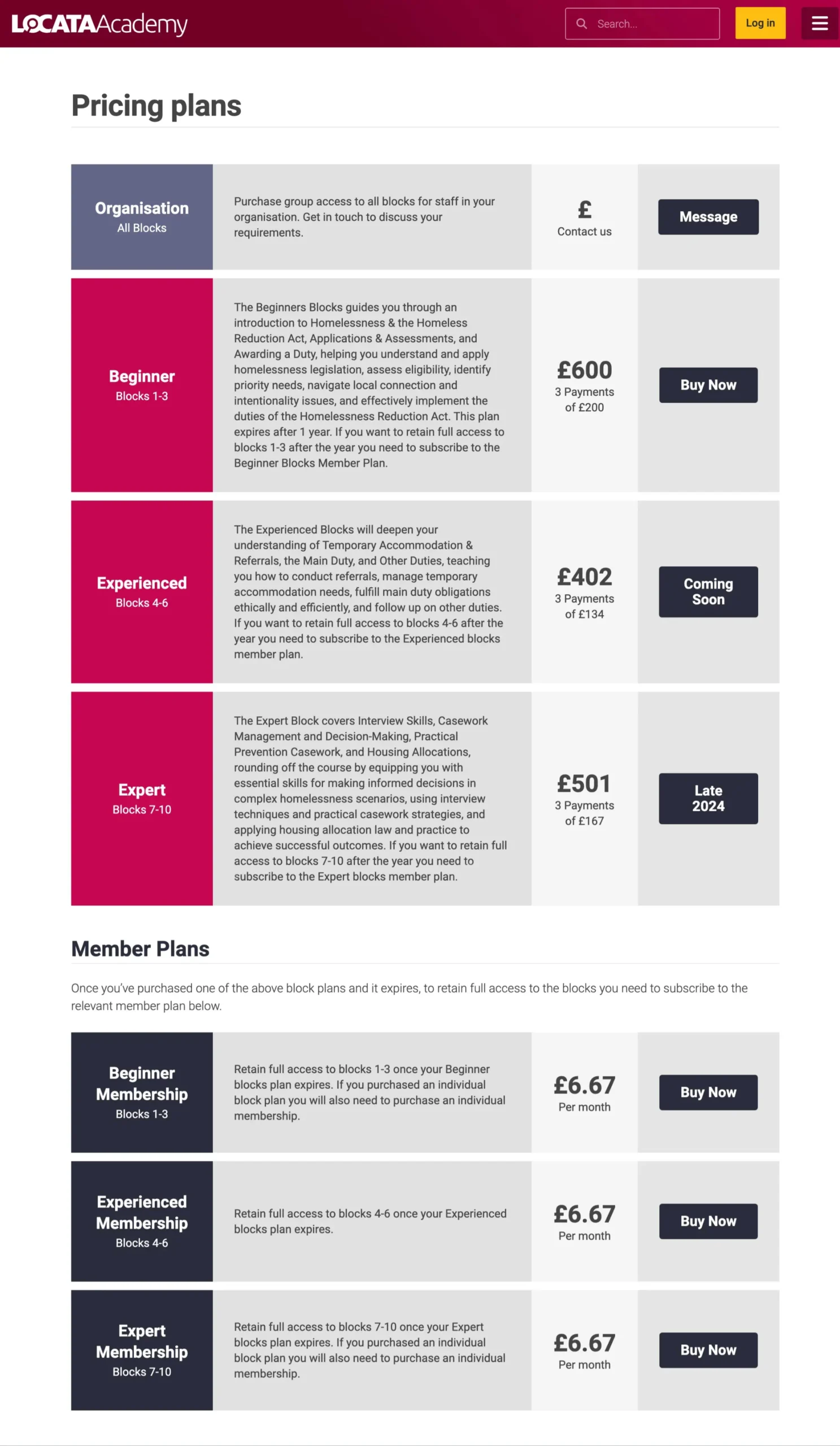
The Locata Academy Homelessness course is split into 3 sections – Beginner, Experienced and Expert. The Beginner section is available now with the Experienced coming soon and the Expert expected later in the year. You can view the plans page by selecting Price Plans from the menu at the top right or by clicking the Get Started button from the Home page. The plans for each section are purchased with 3 fixed monthly payments and provide a single user access to that section for 1 year. If you would to retain access to the section and it’s resources once your plan expires you will need to subscribe to the relevant membership for a low monthly fee.

Preferential rates are available to organisation wanting to purchase multiple seats. With an organisation plan you can manage other user within your group. Please click the message button on the organisation plan option and complete the form. We will then contact you to setup your group account.

Screenshot of Pricing Plans page

46 views

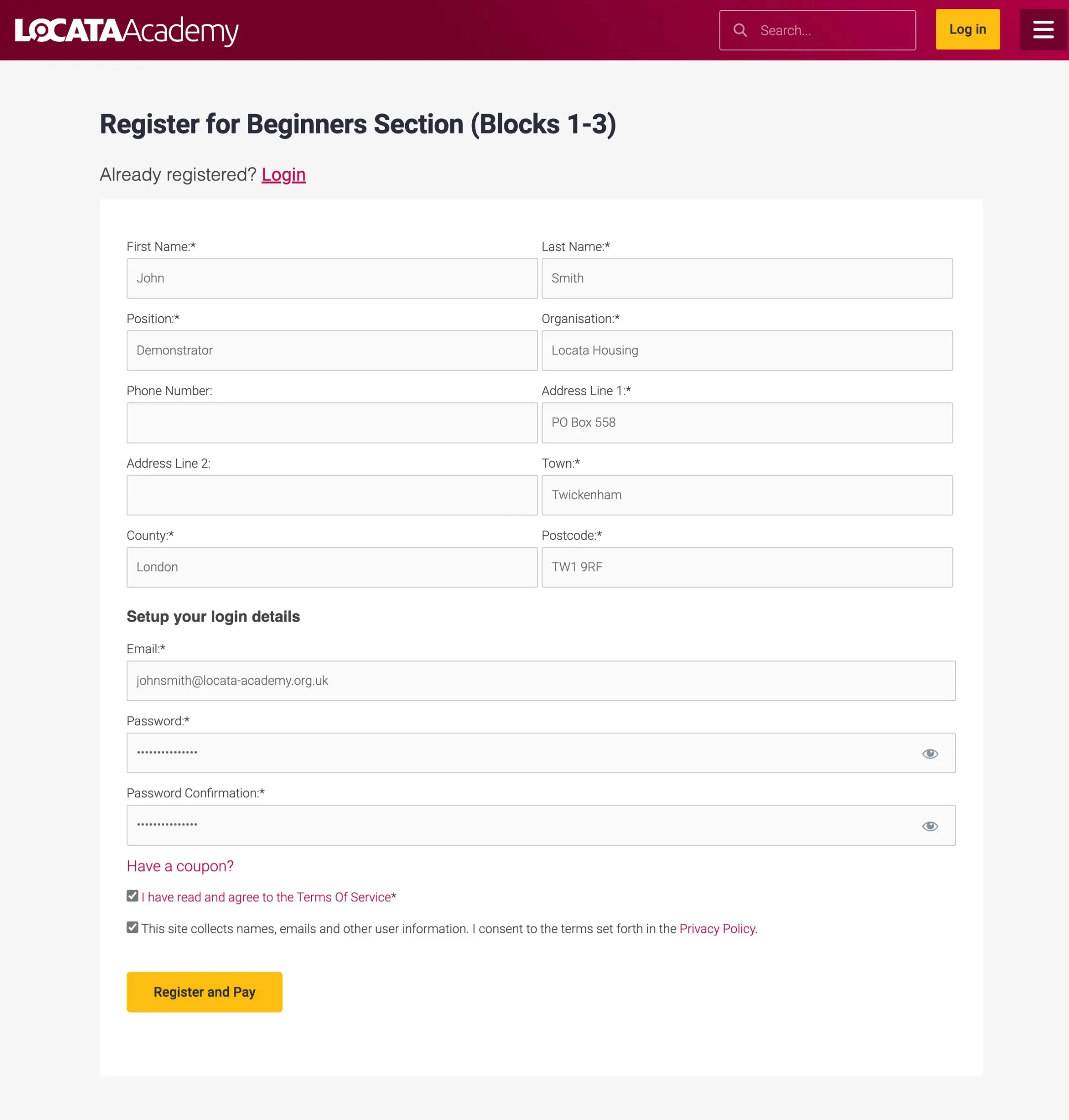
If you have not purchased a plan previously you will be prompted to register and setup an account. Click the Buy Now button of the plan you want to purchase, enter your details into the form and create a password. Your email address will become your username. Once completed click the Register and Pay button.

Screenshot of plan registration


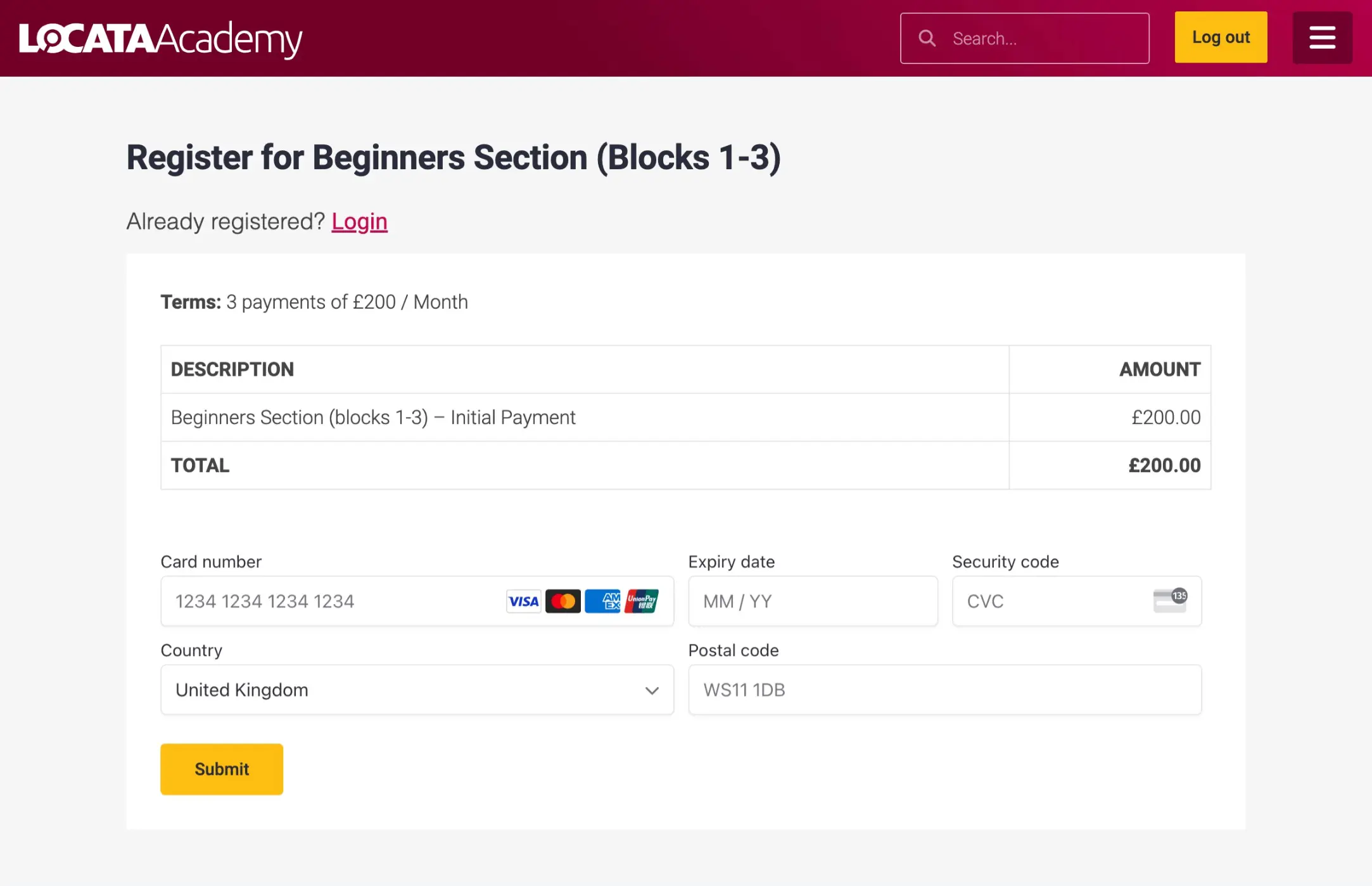
Now you will be presented with a summary of your order and prompted to enter your card details to complete the payment. Click Submit and your order will be processed.

Screenshot of plant payment

40 views

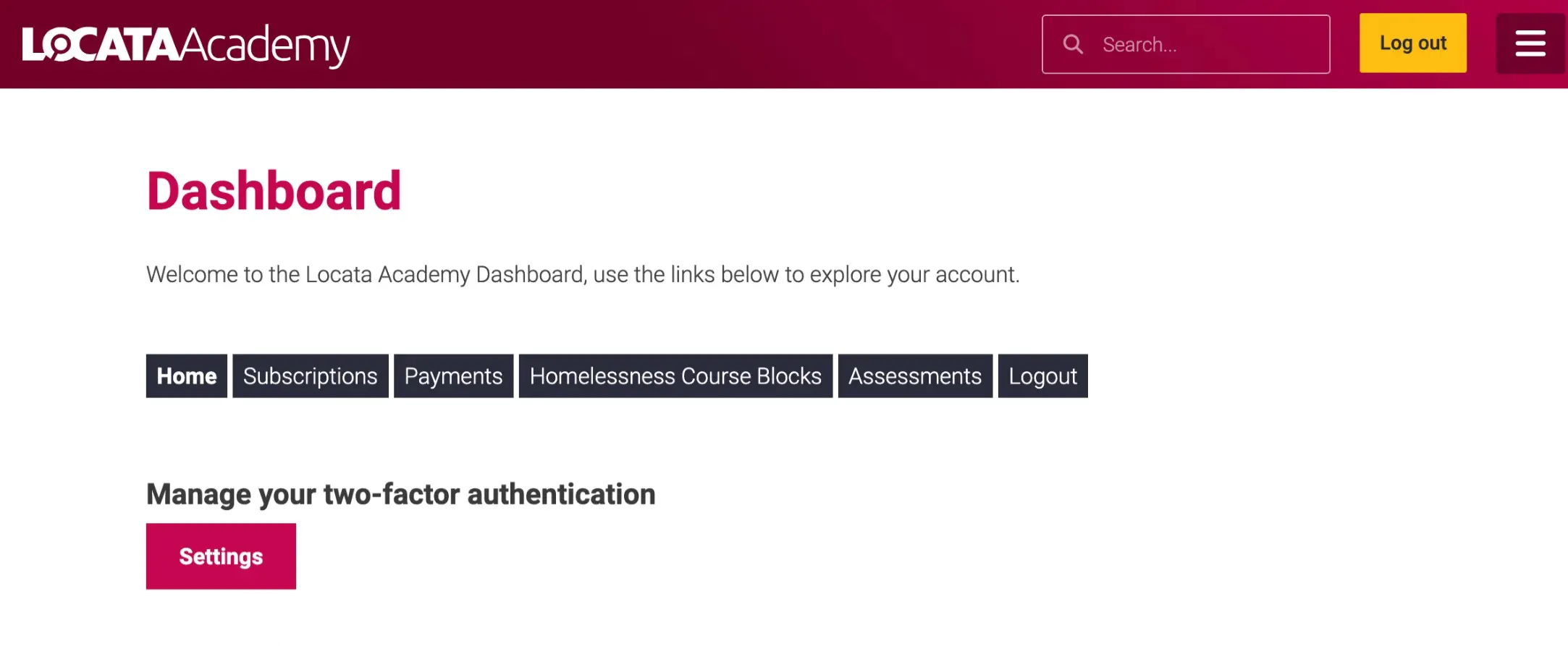
The Locata Academy Homelessness course enforces two-factor authentication (2FA) to provide extra security. Upon registering you will be required to setup 2FA within a week otherwise your account will be blocked. Simply go to the Home tab within your Dashboard and click the Settings button to setup your two-factor authentication.

Screenshot of the two-factor authentication settings button

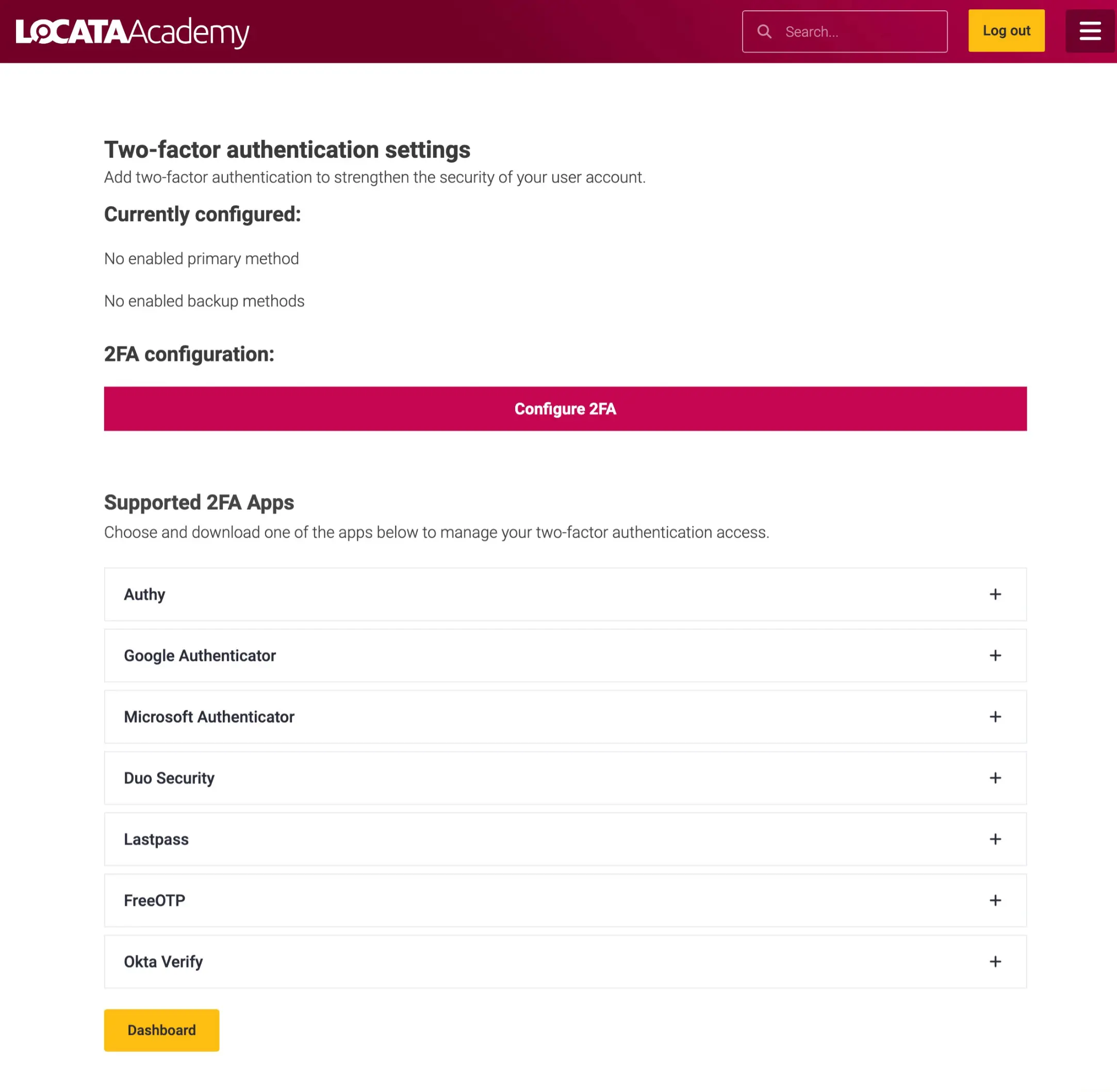
Two-factor authentication works by asking you for a unique 6 digit number every time you login to the site. If you don’t have one already, you’ll need to download an app to generate this number for you. There are a number of free supported apps available to download. You’ll find a list of these on the 2FA setup page.

Screenshot of the two-factor authentication setup page

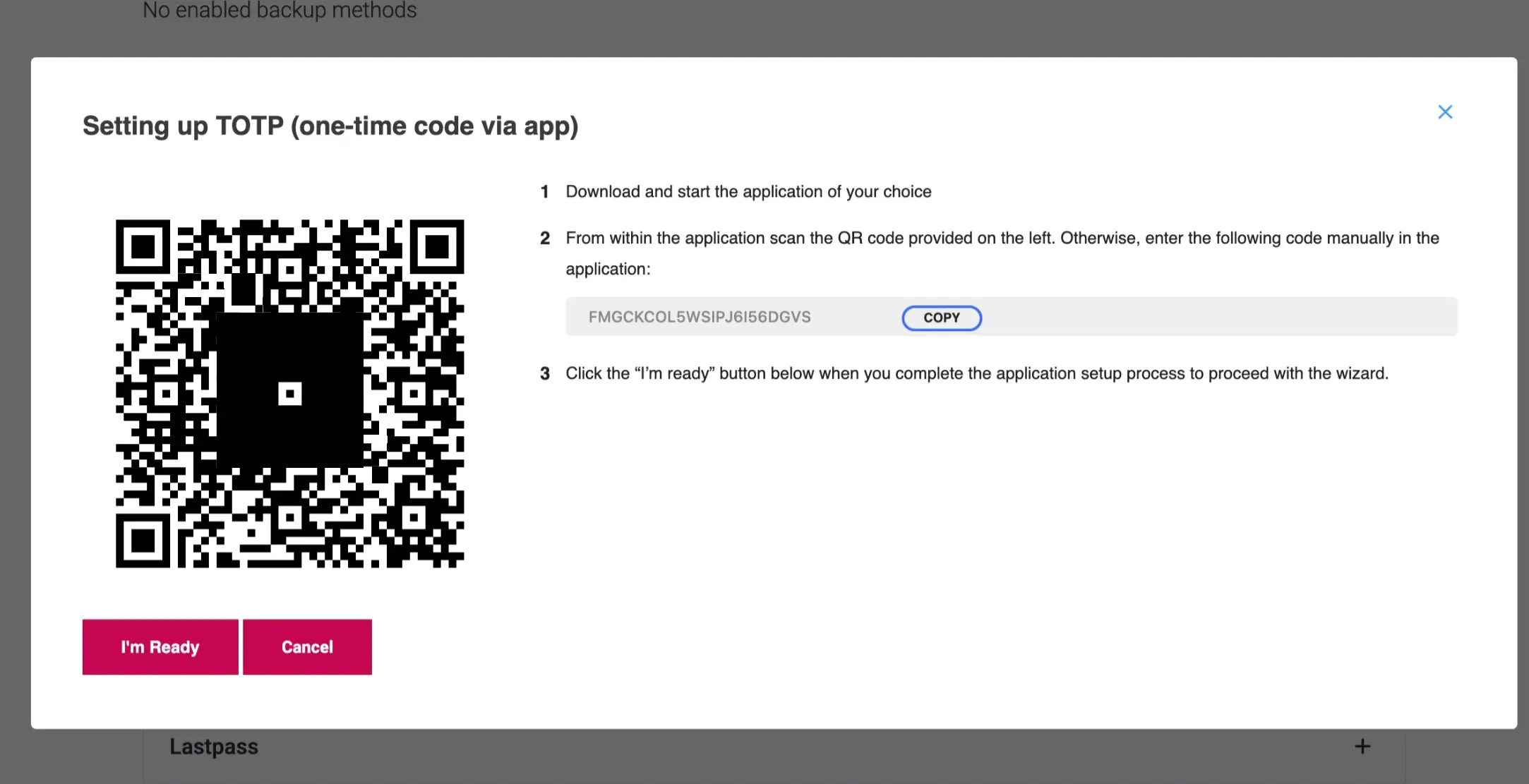
Once you have downloaded your app, click the Configure 2FA button on the site. This will reveal a QR code which you scan from within your app. You can also copy and enter the code instead.

Screenshot of the two-factor authentication QR code

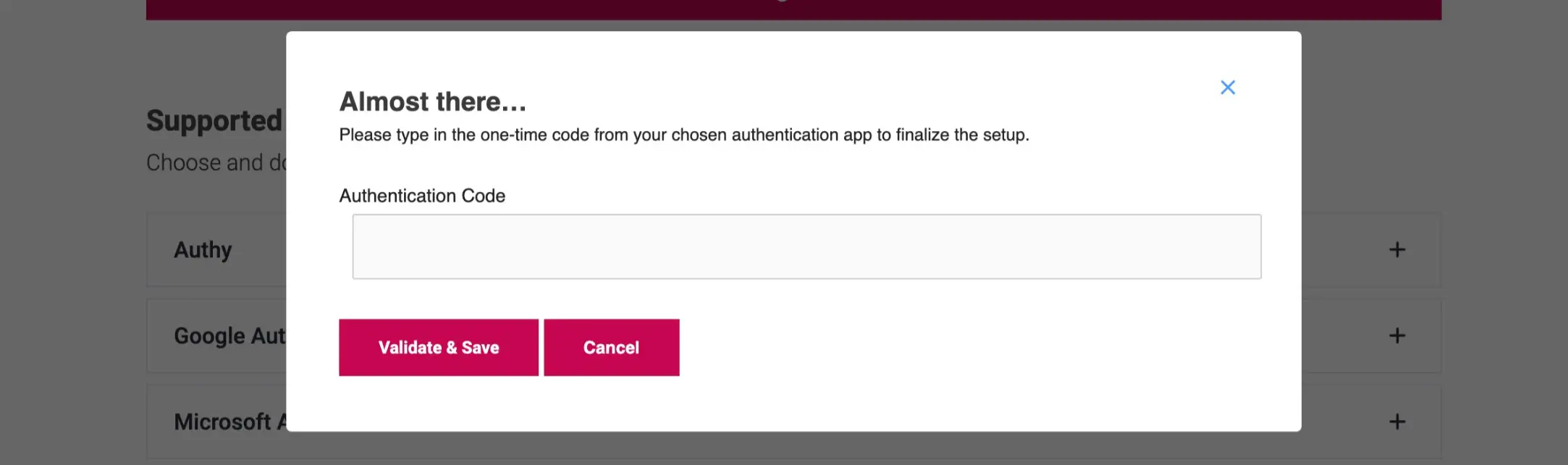
Now click the I’m Ready button on the site and enter the 6 digit number from your app and click the validate & Save button.

Screenshot of the two-factor authentication validation

Your 2FA is now setup and you’ll be prompted to download a set of backup codes to use incase you lose or change your phone.

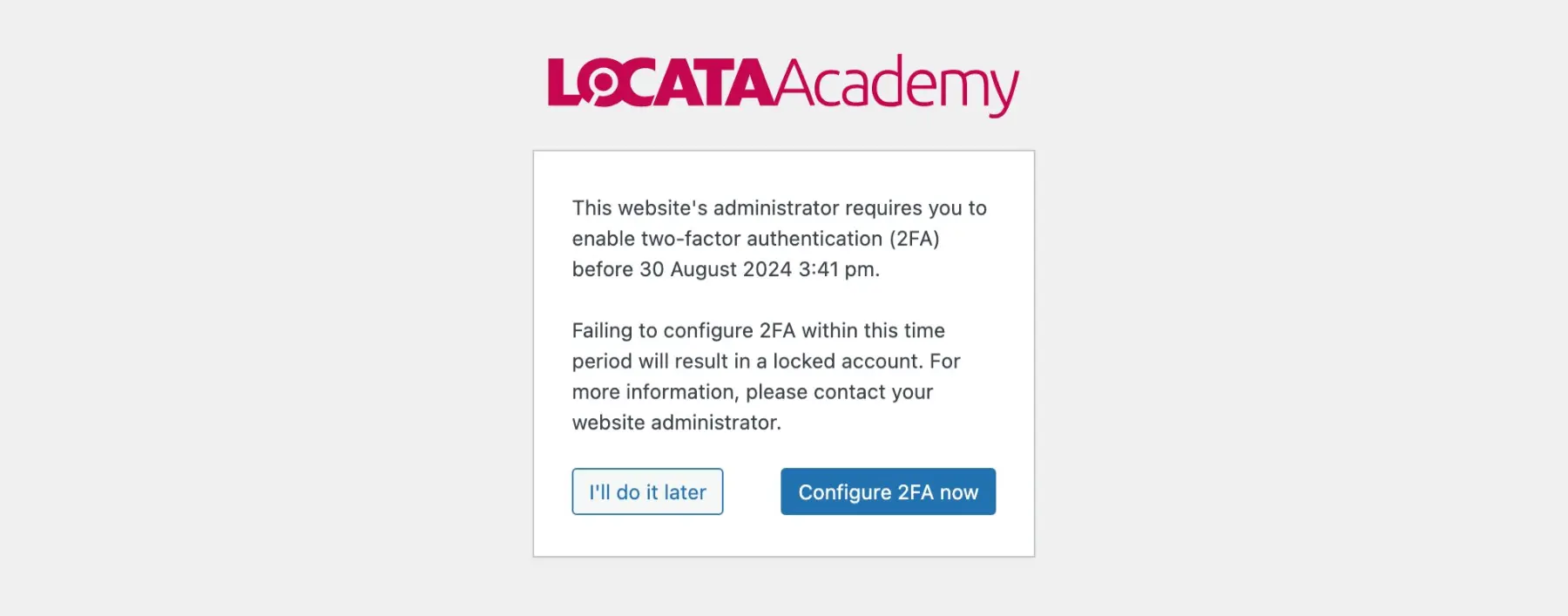
From now on you will be asked for a 6 digit number each time you login. If you don’t set this up you will receive a reminder to do so.

Screenshot of the two-factor authentication reminder

44 views

If any of your details or address changes you can update these in your profile. Go to the Dashboard from the top right menu and you’ll find all your profile details on the Home tab. Make your amendments and click Save profile.

Screenshot of where to change the profile

62 views

The Locata Academy Homelessness Course contains a number of exercises and assessments to test the knowledge you gain from working through the topics.

The exercises are short quizzes of approximately 10 questions. These are not graded, they are purely for you to gauge your understanding of recent topics.

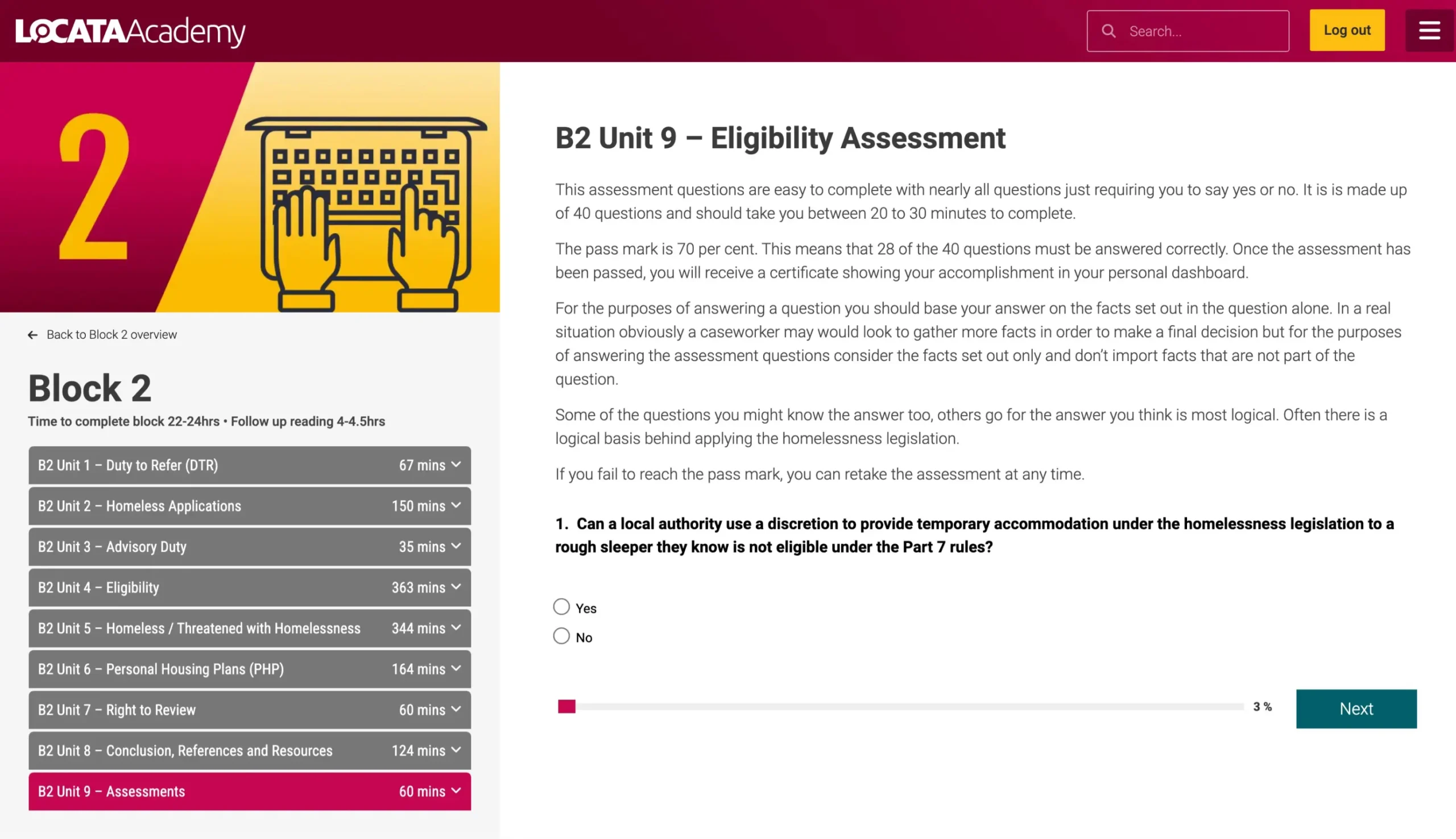
The assessments, accredited by CPD are located at the end of each block and are used to measure your learning & understanding throughout the course blocks (excluding Block 1). Each assessment is made up of 40 questions and should take between 20 to 30 minutes to complete. All of the questions are yes or no answers.

The pass mark is 70 per cent. This means that 28 of the 40 questions must be answered correctly. Once the assessment has been completed, you will be presented with your results and if you are successful in passing a link will display to download a certificate showing your accomplishment. You will also be able to download the certificate from your personal dashboard.

If you didn’t manage to pass you will be given the opportunity to retake the assessment. There are no limits for how many times you can retake the assessments but you must pass them to progress to the next block.

Screenshot of a an assessment page

25 views

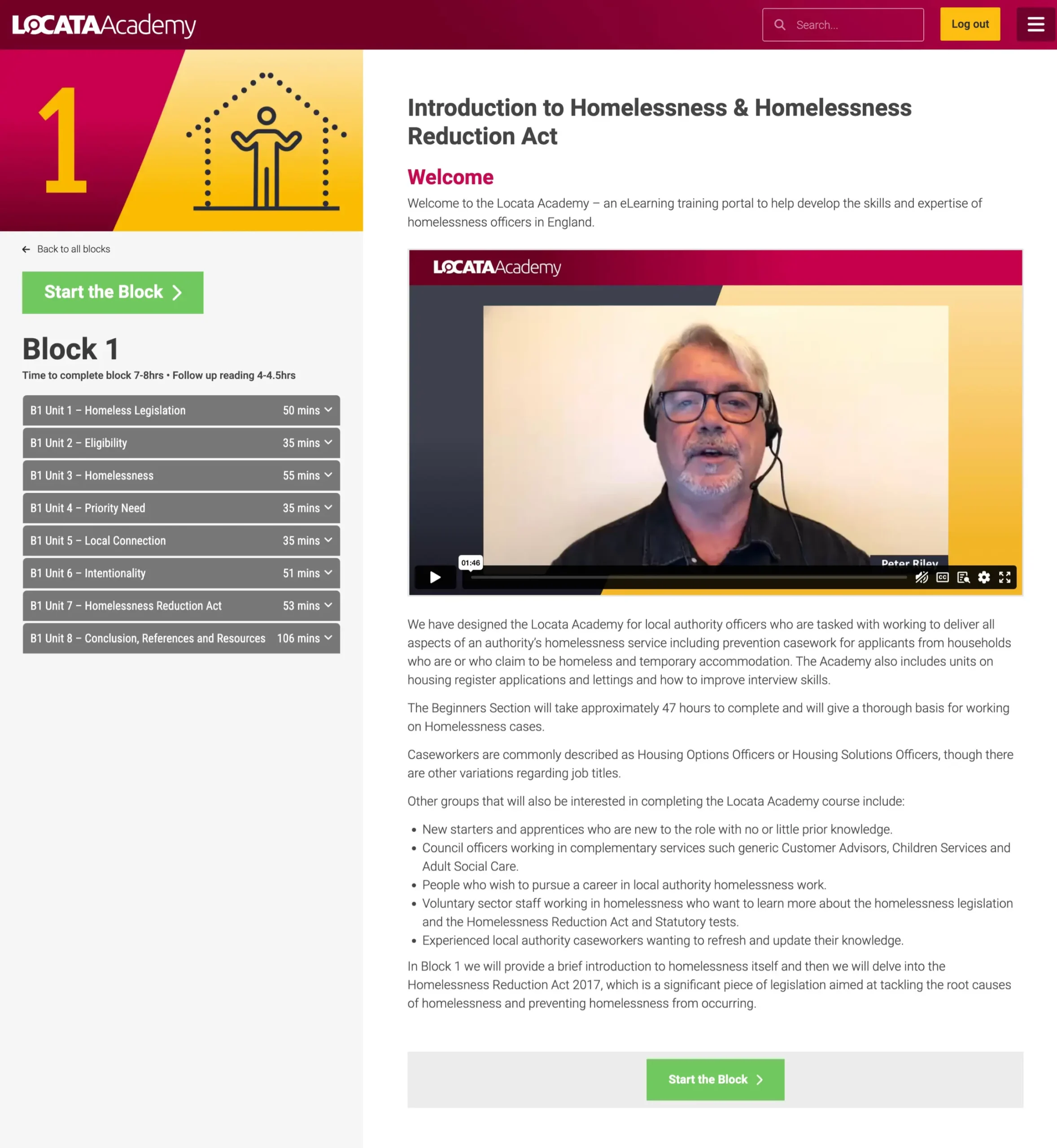
Each block begins with an overview consisting of a video message form Peter Riley, the Managing Director of Locata Housing Services. This is followed by details about what is covered in the block. The left sidebar includes approximate timings to complete the block and the follow up reading. Below that is the block navigation. The top level shows the number of Units, their title and approx completion time. If you click on one of these top level menu items it will open to reveal a list of lessons for that Unit. To begin the block just click on one of the 2 Start the block buttons. Please ensure you have purchase the relevant plan/membership to access the block.

Screenshot of a block overview page

33 views

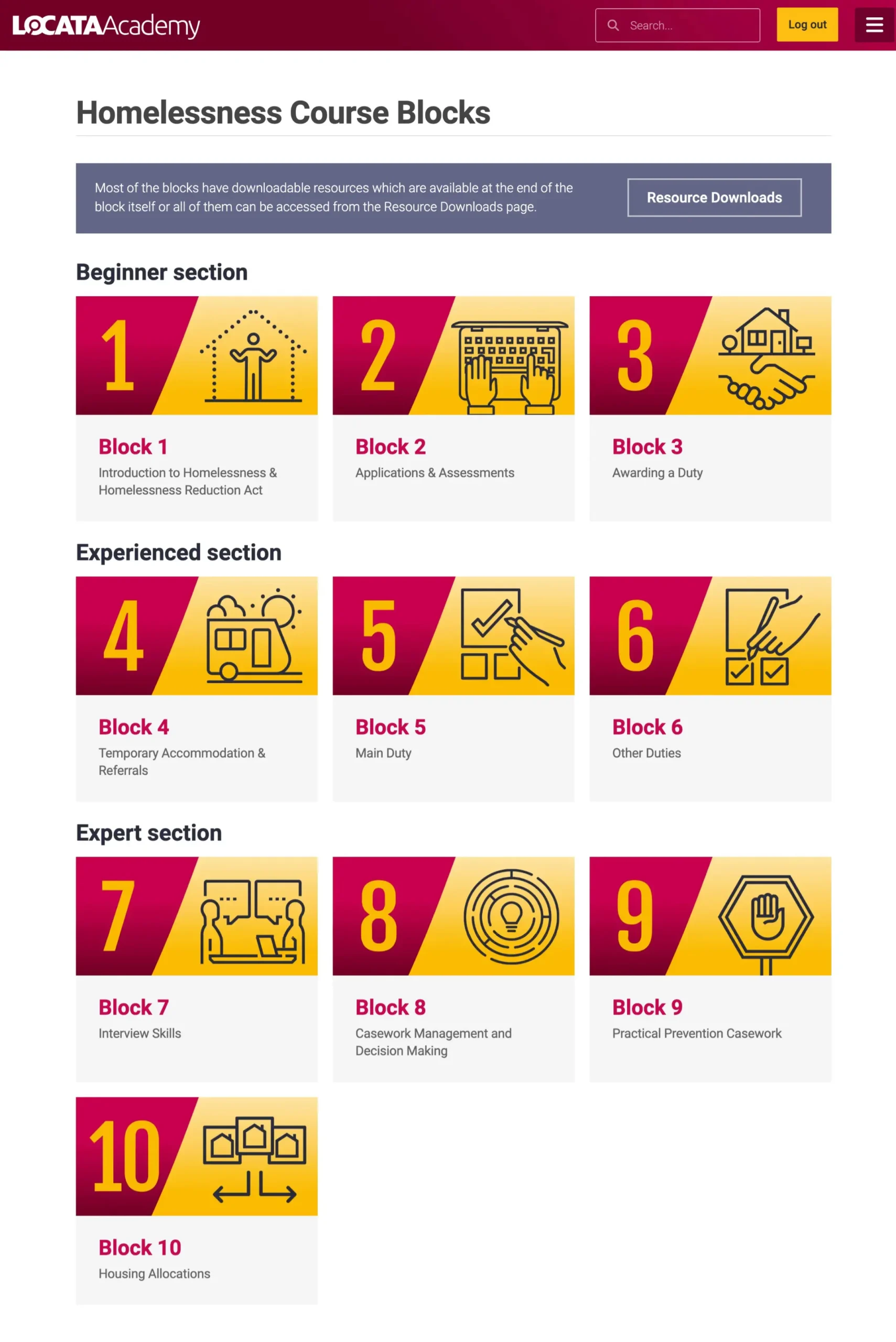
The Locata Academy Homelessness course is split into 3 sections – Beginner, Experienced and Expert. Each section is made up of a number of blocks which tackle the various topics covered under the Homelessness legislation. Clicking on a block will take you to it’s overview page which offers details about what is covered.

Screenshot of the course blocks

47 views
Scroll to Top
Cookie Notification
This site uses cookies to ensure that we give you the best experience on our website. If you continue to without changing your Cookie Settings, we'll assume that you are happy with it.
See our Cookie Policy
Accept all
Settings
Cookie Notification
This site uses cookies to ensure that we give you the best experience on our website. If you continue to without changing your Cookie Settings, we'll assume that you are happy with it.
Accept all
Settings